About
How to have a professional website up and running with combostrap.
This how-to guide regroups a series of article to get you started.
This guide follows these steps:
Start
How to get ComboWiki Up and Running?
If you have any further questions, wishes or errors, don't hesitate to contact us
How to get ComboWiki Up and Running?
About
We offer several ways to get ComboWiki up and running.
We are sorry, but you need to choose the best way that fits your need.
Next Step: Choose your installation method
Note: We recommend the Docker installation as:
- it's the easiest way to get DokuWiki up and running
- it contains all performance cache system (php-fpm and opcache)
- a Server DokuWiki installation is not easy and straightforward
- and more such as storing your site on Git.
What best fits you?
Quick and easy
If you have docker on your laptop or server, you can make use of our image and get DokuWiki and ComboWiki installed and running in one simple command.
The middle way
If you have DokuWiki already installed, you can just install the plugin.
The hard way
No DokuWiki installation, you want to install DokuWiki on a server or a laptop, this page gets you covered.
Docker
This step will get you an installation with our Docker image.
Steps
Docker
You need to have Docker installed on your laptop or server.
You can check it by asking the version in your terminal
docker --version
If you don't have installed, go to the Docker installation page and choose your best installation option.
On Windows?
On Windows, we recommend to install Linux with WSL by following these instructions.
Why?
Because Php is still a Linux and C technology that is really slow on Windows. This is architectural as explained on this issue
Create a data directory
- Create a directory to store the DokuWiki Data
mkdir -p ~/site-combo-starter
- And go into it to change the current directory
cd site-combo-starter
Start DokuWiki in Docker
Start a DokuWiki Docker Instance with the following command.
docker run \
  --name site-combo-starter \
  --rm \
  -p 8080:80 \
  --user 1000:1000 \
  -e DOKU_DOCKER_ACL_POLICY='public' \
  -e DOKU_DOCKER_ADMIN_NAME='admin' \
  -e DOKU_DOCKER_ADMIN_PASSWORD='welcome' \
  -v $PWD:/var/www/html \
  ghcr.io/combostrap/dokuwiki:php8.3-latest
where:
- DOKU_DOCKER_ACL_POLICY='public' will configure a wiki that can only be seen by the public. You need to login to modify it.
- DOKU_DOCKER_ADMIN_NAME='admin' create a user named admin with the admin permission.
- DOKU_DOCKER_ADMIN_PASSWORD='welcome' is the password of the admin user
- -v $PWD:/var/www/html mount your current directory PWD into the image at the HTML server root /var/www/html
- –user 1000:1000 will create file as if it were you creating them. The user 1000 is the UID of your Desktop user (in Windows WSL at least)
Check that the instance has started
The command above will:
- start php,
- install DokuWiki,
- install the starter site
- and is ready when you see this lines:
INFO success: caddy entered RUNNING state, process has stayed up for > than 1 seconds (startsecs)
INFO success: php_error_log entered RUNNING state, process has stayed up for > than 1 seconds (startsecs)
INFO success: php_fpm entered RUNNING state, process has stayed up for > than 1 seconds (startsecs)
- You can then access DokuWiki at http://localhost:8080
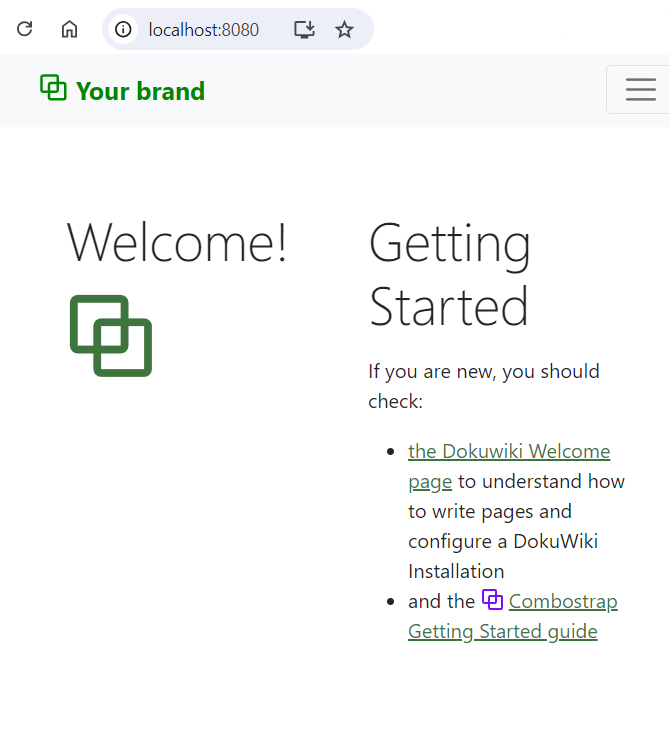
If you want to stop the instance:
- you can press Control+C with your keyboard in the current terminal
- Or you can open another terminal and stop it with the following command
docker stop site-combo-starter
Login
Go to the login page: http://localhost:8080/?do=login
And enter the credentials:
- user: admin
- password: welcome
Next Step
In the next step, you will learn to install a favicon
Server
About
This page is intended to help you get a DokuWiki instance installed with a Linux/Windows operating system.
Support
This part is crucial for performance reason.
It's not 1, 2, 3 as you need to have a broad knowledge of:
- Linux/Windows
- ssh,
- php,
- php extension, opcache
- and many components
If you struggle, you can:
- try our Docker Image that install a whole environment in one line of code
For more information, you can also visit the DokuWiki Install page
Steps
Download DokuWiki
Server requirement
Verify that your php server has the minimum requirements:
- php version supported: 7.4 to 8.2
- and php extensions
Upload and unzip the DokuWiki Archive
You should:
- Upload the zip file to your web server
- Unzip it to your web directory
Run the installer
You can access the installer page at https://yourdomain.com/install.php
- Answer the install form. Choose:
- at minimal the ACL option, otherwise you get no access to the admin page
- Done
Next Step
In the next step, we will install the combo plugin
Combo Plugin
About
The combo plugin contains all components:
- The theme
- The router
- The Page Metadata
- The SEO module
- and many more.
Steps
Pre-requisites and options not supported
Last Dokuwiki Version:
In case, you have not followed the server step, you should install ComboStrap on the last DokuWiki version.
If you don't know the version of your installation, the dokuwiki version check will help you.
DokuWiki Internal rewriting:
Because of the permanent url functionality, Combostrap:
- does not support the URL DokuWiki Internal rewriting (option 2)
- but supports nice url via the web server
Go to the Extension Manager
To install the Combo plugin:
- Click on the Admin link to go to the Admin Window. ie https://yourdomain.com/?do=admin
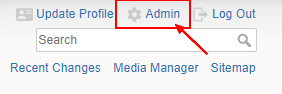
- Click on the Extension Manager link to go to the Extension Manager plugin.
- Click on the Search and Install link to go to the Search tab
Install the SQLite extension
combo is saving its data in a sqlite database and therefore uses this extension.
- Search for the term sqlite
- Click on the install button.
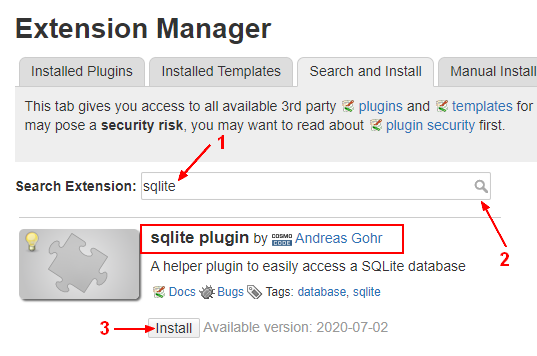
Do you have any other plugins ?
ComboStrap is tested against third party plugins but we can't test them all.
This application has a large code base going from cache to routing and user interface management.
Plugins that are too old or do not respect the DokuWiki Interfaces may not work well with ComboStrap.
Install the Combo extension
Because of the memory error of the update plugin, Combo needs to be updated manually via the manual install tab.
- In the extension manager, click on the manual install tab
- Enter the Github Url: https://github.com/ComboStrap/combo/archive/main.zip
- Check the box Overwrite existing files
- And click the install button.
- Don't worry. if you get any problem, the next section explains how to revert it back.
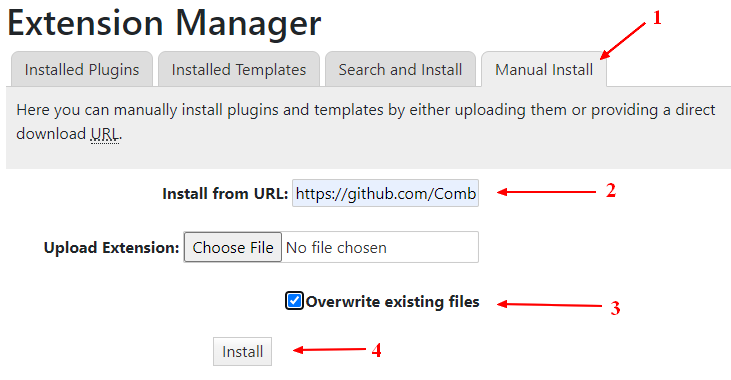
Do you have a broken Installation?
If this is the case and that you got your installation not working anymore, the fix is:
- to rename on your server the directory dokuwiki/lib/plugins/combo to dokuwiki/lib/plugins/combo.old
- or to delete it
And to send us the log of your webserver if you want us to take a look.
Next Step
In the next step, you will learn to install a favicon
Third Party Plugins
About
This page is an optional and informative step that highlights important information that you should now about third party plugins.
ComboStrap supports third party plugins and you can see them all on their dedicated page.
You can install any plugin the same way as Combo with the extension manager.
Highlights
We recommend to install the two below plugins.
Move
We support the move plugin
You can quickly move a page with the rename action in the railbar.

Search Index Manager
We support also the Search Index Manager
It will:
- recreate the index of all pages.
- update the combostrap database.
You should use it:
- if you move pages on the server via the file system (for instance in case of a new installation)
- after each new release
Support
Plugin and Combostrap update
After an installation, if you want to update a plugin or Combostrap and if you have a memory error, you need to update them via the manual install procedure.
Plugin support
We support all plugins that are working with a standard dokuwiki installation.
If you have any problems with a third party plugin:
- check the plugin page to see if there is already a solution.
- if not, contact us or open a ticket
Next Step
Learn how to create and install your favicons.
Favicon Installation
About
This page is an HowTo that shows you how to choose and install a favicon and your logo image with ComboStrap.
Steps
Choosing a icon logo
You can design your own logo but you can also be inspired by collection of logo
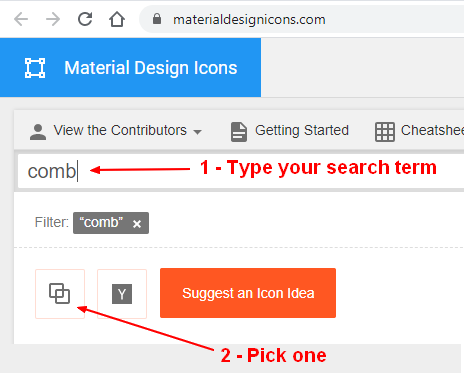
In our case we have chosen an icon directly from https://materialdesignicons.com/
- Choose an icon
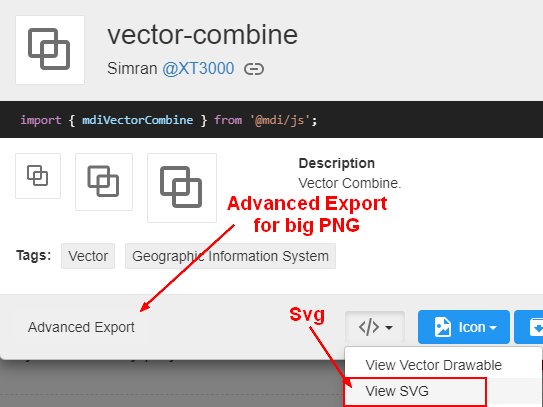
- Download the Svg file and rename it to logo.svg
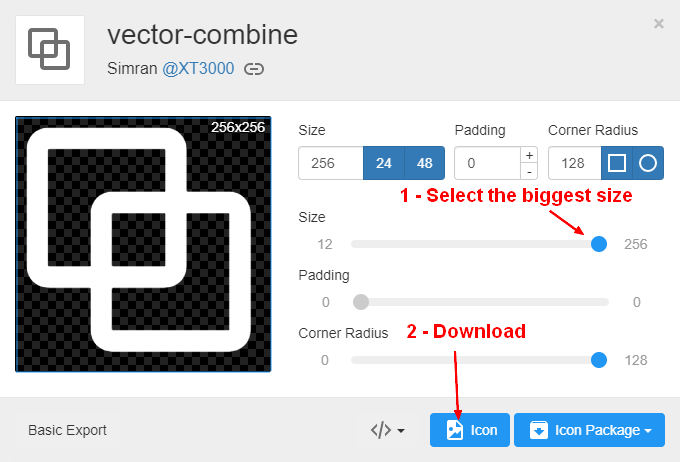
- Go back in the Advanced Export and create a PNG with the biggest size
Generate the favicons
- Go to the realfavicongenerator generator
- Upload your PNG image
- Answer the forms, follows the steps and download the package icon
Upload the favicons
- Then upload the below icon files with the Media Manager 1) to the root location (ie DOKUWIKI_HOME/data/media/)
- Click on this link http://localhost:8080/start?ns=&tab_files=files&do=media and upload the following files
- favicon.ico
- favicon-32×32.png
- favicon-16×16.png
- apple-touch-icon.png
- android-chrome-192×192.png (used in the manifest)
- logo.svg
Example:
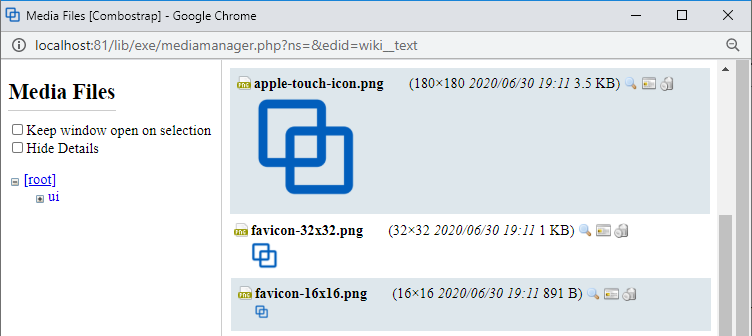
To see where and how you can use your logo, see the logo page.
Create the facebook default
facebook has a dimension constraint on the image illustration. The image should be at minimum 200px by 200px.
We recommend then that:
- you create an image with your photo editor:
- with the dimension of a facebook card 524×274
- where you copy your logo
- and named logo-facebook.png (the default value)
- and upload it at the root of your media manager (next to the other logos)
The facebook page will tell your more about the specific of a facebook card.
Verify
- Refresh and delete the Browser cache by hitting the key combination
- Ctrl + Shift + R - Chrome
- or Ctrl + F5 - Firefox
- Check that you see your favicon
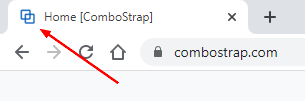
Next Step
Support
OpenSearch Favicon
In the open search, unfortunately, the icon is the icon of the template and is hardcoded, there is nothing we can do to change it at this place.
We advertise it via sitelinks to search engines.
Most of the search engine, support it this ways, if you really really want it, you need to put it manually at $DOKUWIKI_HOME/lib/tpl/dokuwiki/images/favicon.ico.
Top menubar
About
The templates support the creation of a slot page in order to modify a page layout.
For instance, most of them support a page header slot in order to modify the page header (the top location of your pages)
This is where we will create a menu bar.
Steps
- Go to this URL http://localhost:8080/doku.php?id=slot_header to create a page called :slot_header at the home level
- You will see the menu bar of the starter site.
You can:
- modify it
- or enter a more complicated example. If you have uploaded a icon in the Favicon step, a minimal header slot with a menu bar would look like:
<menubar breakpoint="lg">
<brand title="My Brand">
<icon name="logo.svg" />
My Brand name
</brand>
<collapse>
<group expand="true">
<dropdown name="Menu">
[[#|item]]
[[#|item]]
</dropdown>
</group>

<btn shadow="true" color="white">[[getting_started:getting_started|Get Started]]</btn>
<search/>
</collapse>
</menubar>
More … see the menu bar page
Next Step
In the same way, you can also modify the page footer with the following link: http://localhost:8080/doku.php?id=slot_footer
In the next step, we will store your site as combo site in Git.
How to store your site in Git?
About
This page will show you how to store your site as combo site in a remote Git repository.
Steps
Create a remote Git Repository
We will be using GitHub as example, but you can use any Git Repository Provider such as Gogs, GitLab or Gitea.
For GitHub, follow this article to create your new repository.
Create a local Git Repository
* Go to the root of your DokuWiki installation.
- If you choose the docker installation, it's the directory that was used with the docker command
- Otherwise it's the directory where you found the doku.php file
cd /tmp/site-combo-starter
* Initialize a Git repository
# Init (ie create ) a local repo
git init
- Rename the master branch to main
git branch -M main
The secret sauce, add .gitignore
Now, the secret sauce
Because we don't want to back up all files into Git, we can use the gitignore mechanism to ignore all code file and not our pages and assets.
If you didn't choose the docker installation method, add the .gitignore file manually or with wget and bash
wget https://raw.githubusercontent.com/combostrap/site-starter/refs/heads/main/.gitignore > .gitgnore
Add the Git remote
- Add the URL of your repository as origin
git remote add origin https://github.com/ComboStrap/site-starter.git
Check the untracked files
git status
On branch main

No commits yet

Untracked files:
  (use "git add <file>..." to include in what will be committed)
        .gitattributes
        .gitignore
        README.md
        conf/
        data/
        docs/
        lib/
        robots.txt

nothing added to commit but untracked files present (use "git add" to track)
Add your site files
Add them all
git add .
Create your first commit
- Create a commit
git commit -m "First commit"
Push them to your remote repository
- Push
git push -u origin main
# enter your credentials
# or use SSH Keys (https://docs.github.com/en/authentication/connecting-to-github-with-ssh)
Enumerating objects: 45, done.
Counting objects: 100% (45/45), done.
Delta compression using up to 16 threads
Compressing objects: 100% (36/36), done.
Writing objects: 100% (45/45), 50.71 KiB | 10.14 MiB/s, done.
Total 45 (delta 1), reused 0 (delta 0), pack-reused 0
remote: Resolving deltas: 100% (1/1), done.
To github.com:ComboStrap/site-starter.git
 * [new branch]      main -> main
branch 'main' set up to track 'origin/main'.
Next
If you write locally, you can now develop, change your wiki and push your change to your Git Repository.
Then you can:
- Check the UI Components
- Learn about Routing and redirections
- Have a look at the SEO page
For more tips and tops, you can also subscribe to the newsletter.